Before you update
Back up your device to iCloud or iTunes.If you use your device's Personal Hotspot for your computer's Internet connection, update your device wirelessly or connect your computer to another network.
Update your device wirelessly
The easiest way to update your device is wirelessly, also called “over the air.” Here’s how:- Plug in your device to a power source.
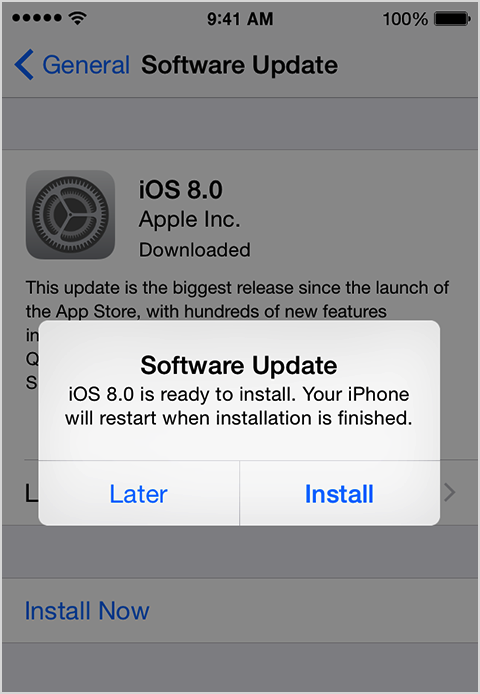
- Tap Settings > General > Software Update.

- Tap Download and Install. Updates might download automatically while your device is connected to Wi-Fi and a power source.
- Tap Install, or tap Later to install the update later. If you use a
passcode, you'll need to enter it before installing the update.
Some iOS software updates aren't available as over-the-air updates. VPN or proxy connections might prevent your device from contacting the iOS update servers.
Update your device using iTunes
If you can’t update wirelessly, or if you want to update with iTunes, follow these steps:- Install the latest version of iTunes on your computer.
- Plug in your device to your computer.
- In iTunes, select your device.
- In the Summary pane, click Check for Update.
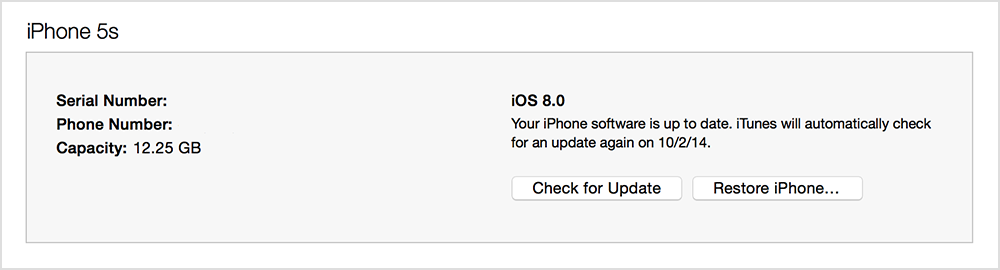
- Click Download and Update.

No comments:
Post a Comment